
Using Pre-Built MDX Components
Play Around with Pre-Built Components
This page is fully editable for you and your team! Try inserting pre-built components and adding content and Markdown styling, or edit the once below to get a feel for how to use them.
In the ReadMe Editor UI, you can easily add MDX components using slash commands:
- Type
/in the editor to open the command menu - Look for the "Component" section in the menu
- Select the component you want to use:
/tabs- Create tabbed content/accordion- Add expandable sections/cards- Create a card grid layout/columns- Add vertical columns of text/mermaid diagram- Create diagrams and charts with Mermaid.js
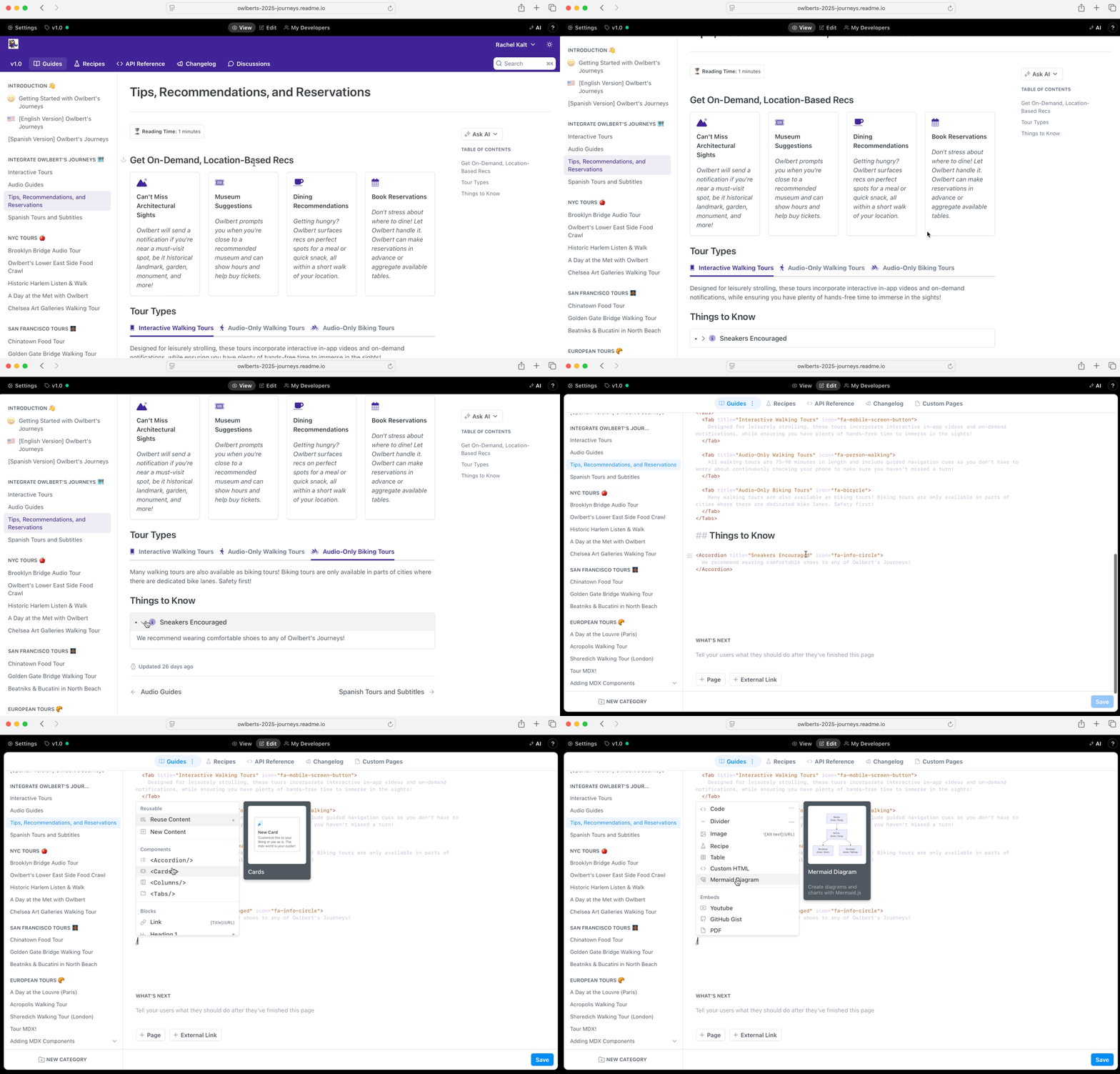
The component will be inserted with a default structure that you can customize with your content. You can also add the base component to your Custom Components page in either your child project or Enterprise Group and customize further!
MDX Syntax Basics
Components
MDX allows you to use components directly in your Markdown:
# Regular Markdown Heading

<MyComponent>
  This is inside a component
</MyComponent>

Back to regular Markdown
JavaScript Expressions
Use JavaScript expressions within curly braces:
# {frontmatter.title}

The current date is {new Date().toDateString()}
Mixing HTML, JSX, and Markdown
Freely combine different syntax types:
# Welcome

<div style={{ padding: '20px', backgroundColor: 'lightgrey' }}>
  This is a **Markdown** paragraph inside a <div>.
</div>
Implementation
Organizing Related Content
Example
When you have multiple related topics or examples, use Tabs:
First, set up your configuration... Now you can use the feature... Here are some examples...Progressive Disclosure
Use Accordions for optional or detailed information:
Example: API Rate Limits
Our API has a default rate limit of 100 requests per minute.
Each API response includes these rate limit headers: `X-RateLimit-Limit`: Total requests allowed or `X-RateLimit-Remaining`: Requests remainingFeature Showcases
Present features or options using Cards:
Example
**Secure your API** Learn about authentication methods and security *Explore our API* Comprehensive endpoint documentation > Find client libraries > Available in multiple languages Step-by-step tutorials and examplesImproved Readability and Scanability
Present content in a more digestible way using Columns:
Example
Columns break content into narrower chunks. *They help reader scan for key information quickly.* > Columns can also help present related items side-by-side, making relationships or differences immediately apparent.Guide Users Through Step-by-Step Decisions
Help readers navigate paths based on specific criteria or situations using Mermaid.js Diagrams:
Example
flowchart TD
    Interactive[Interactive Tours Coming Soon] --> Domestic[Domestic]
    Interactive --> International[International]
    Domestic[Domestic] --> Austin[Austin]
    Domestic[Domestic] --> Charleston[Charleston]
    International --> Rome
    International --> Tokyo
Updated about 1 year ago